
If you are learning how to fill out a timecard correctly, record what you actually worked, day by day, and review the total before the timecard is submitted. Use the employer’s required app or form and its stated procedure. Do not estimate from memory when a reliable clock record is available, and do not change a punch simply to make it match a scheduled shift.
If your employer calls the form a timesheet rather than a timecard, the same shift-by-shift approach applies. For covered nonexempt workers, federal recordkeeping rules require accurate information about hours worked and wages, but the Department of Labor does not require one particular timecard format. Your employer may use a paper sheet, a time clock, or an electronic system. State and local rules can differ, so ask payroll which procedure applies if a field or break code is unclear.
How to fill out a timecard correctly: each workday
- Date and work location: select the date the shift began, plus the department, job, or location fields the employer requires.
- Start time: enter when you began work under the employer’s timekeeping procedure, using AM/PM or 24-hour format as the app requests.
- Stop time: enter when you stopped work. If the form needs separate work periods, record each in and out pair.
- Meal and rest periods: enter breaks using the designated fields or codes. Do not assume a scheduled meal was unpaid if you were not fully relieved from duty; report work performed during a break.
- Job or pay code: choose the correct assignment, leave type, or cost code only when instructed. Ask if you cannot identify the right code.
- Notes or exception: use the notes field for required context such as a missed punch, shift crossing midnight, or supervisor-approved correction.
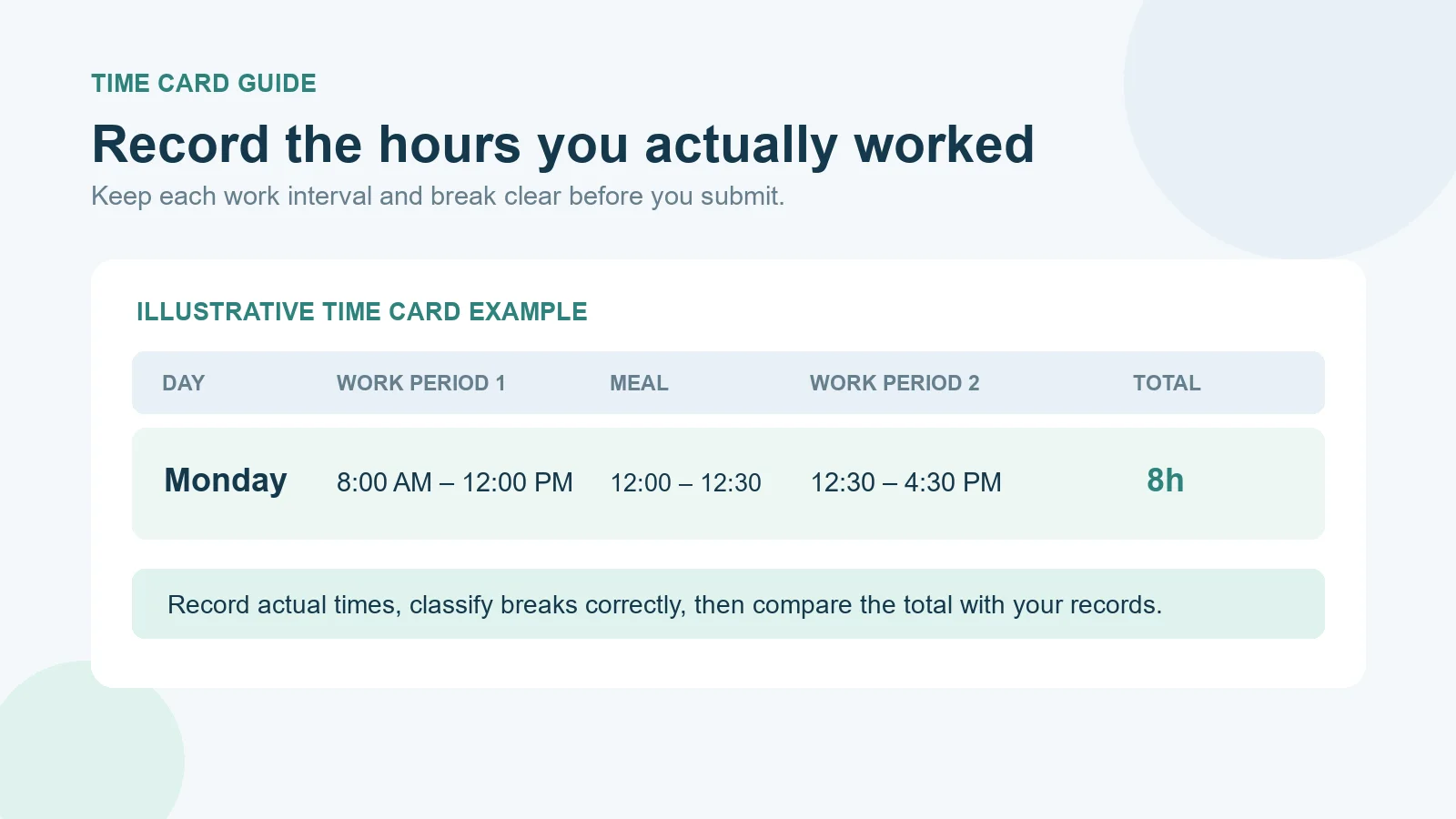
Timecard example
The table shows an hourly employee timecard with two work periods and one meal interval.
| Entry | Example | What to check |
|---|---|---|
| Work period 1 | 8:00 a.m.–12:00 p.m. | Start and stop match the actual work period. |
| Meal period | 12:00–12:30 p.m. | Record the meal according to policy; do not deduct it automatically if work continued. |
| Work period 2 | 12:30–4:30 p.m. | Record the second start and stop if the system requires them. |
| Daily total | 8 hours worked if the 30-minute meal was fully duty-free and properly unpaid | Recheck the total and the meal classification. |
This is a generic arithmetic example, not a finding about any particular employee’s legal entitlement. Federal guidance generally treats a bona fide meal period as unpaid only when the worker is completely relieved from duty. Short rest periods are generally counted as work time. State requirements and the actual facts can change the result.
Review the total before submitting
- Check each date and confirm that no shift was entered on the wrong day.
- Compare all in/out times with the app, punch receipt, approved schedule, or contemporaneous notes.
- For an overnight shift, make sure the end time falls on the next calendar date when appropriate.
- Recalculate elapsed time and subtract only breaks treated as unpaid under the correct procedure.
- Add daily totals for the workweek. Keep the employer’s defined workweek in view; a paycheck period may span more than one workweek.
- Review overtime or exception warnings, but ask payroll about the rule rather than removing time to clear a warning.
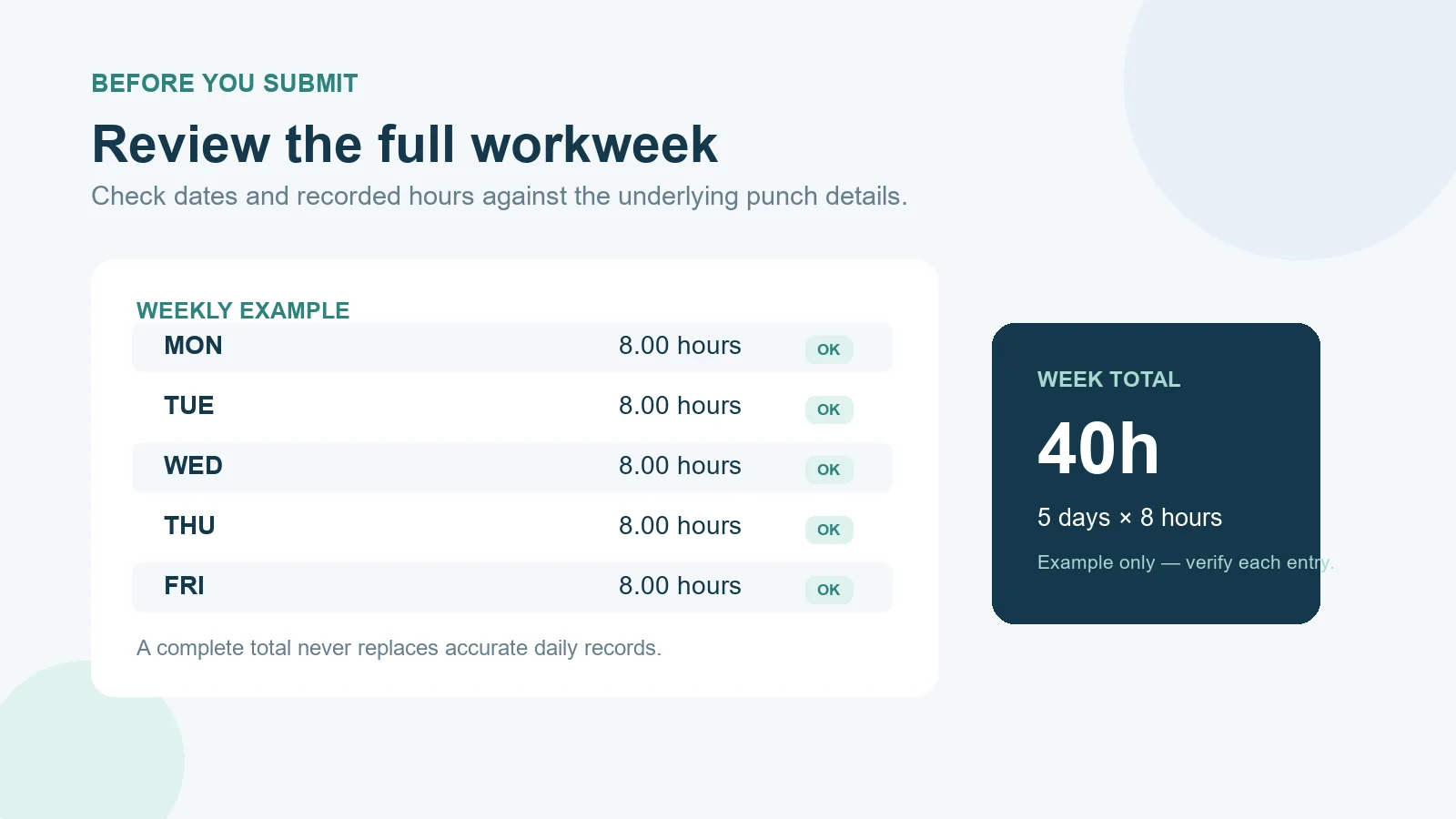
Example: a weekly record lists 8, 8, 8, 8, and 8 hours worked. The total is 40 hours. If a sixth-day shift was also worked, enter it as well and let the employer review overtime under the applicable rules. Never omit hours because the schedule was already full or because a manager has not yet approved the entry.
How to correct a missed punch
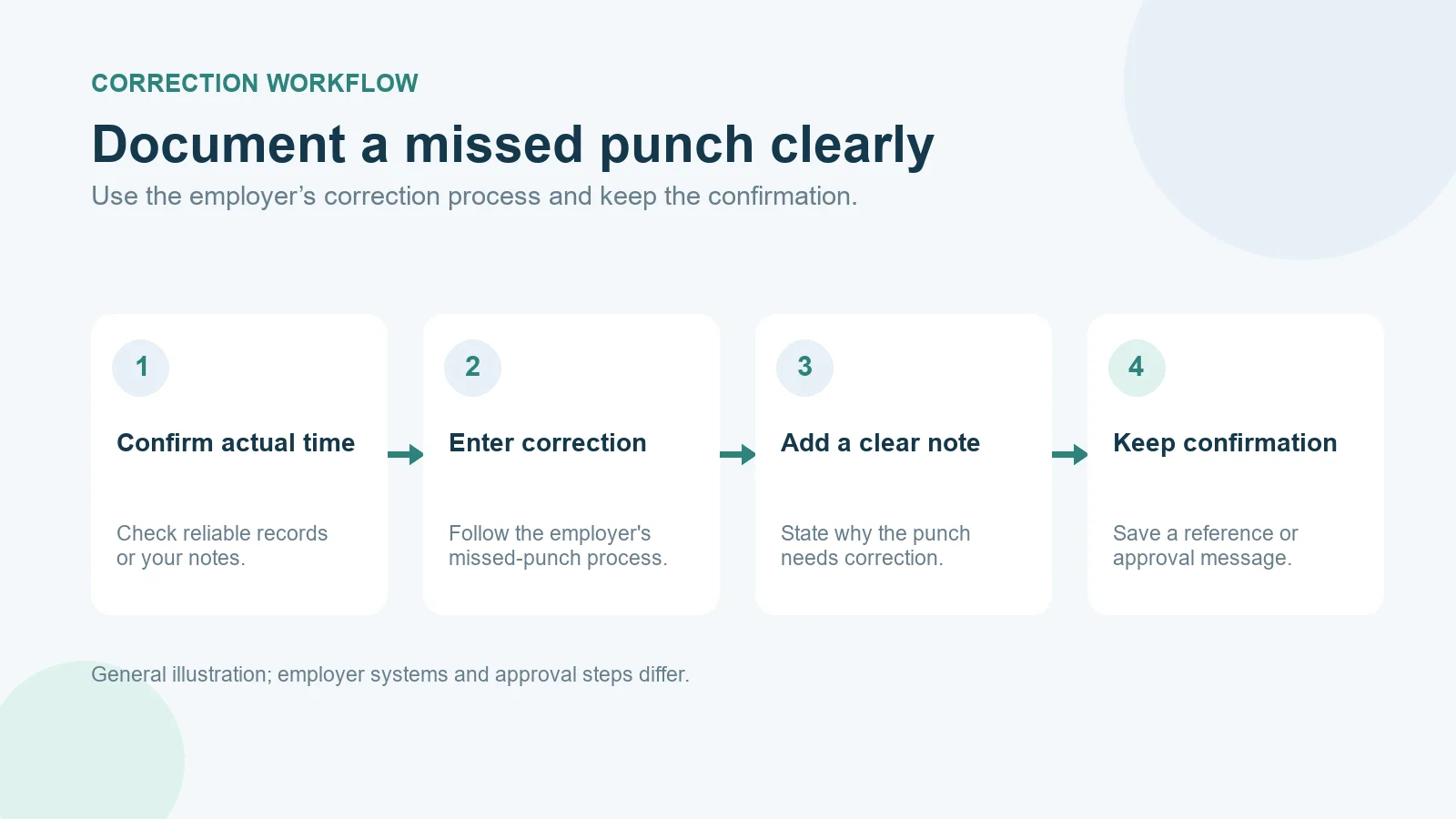
If you forgot to clock in or out, follow the employer’s correction workflow as soon as possible. Enter the best-supported actual time, identify the entry as a correction if the system allows it, state the reason briefly, and submit it to the designated supervisor or payroll reviewer. Keep any confirmation or reference number.
If you cannot verify the exact time, say that it is an estimate and provide the basis for it, such as a shift note or work-system timestamp. Do not backdate or alter someone else’s entry, and do not ask a coworker to approve a time they cannot confirm. If a submitted correction is rejected or the pay statement still appears wrong, contact payroll and keep a copy of the relevant dates and correspondence.
Common timecard mistakes
- Entering scheduled instead of actual time: a schedule is a plan; note a difference when the process requires it.
- Typing minutes as decimal hundredths: 7:30 is 7.5 hours, not 7.30. Use the format requested by the system.
- Subtracting every lunch automatically: record what happened, especially if work continued during the meal.
- Forgetting a second work interval: record separate work periods when you clock out and back in.
- Ignoring overnight dates: the calendar date may change while the shift continues.
- Editing without a trace: use the correction or approval function so the time record reflects the change and its reason.
When to ask for help
Ask a supervisor or payroll administrator when the timecard does not accept a required entry, a break code is unclear, a shift spans a pay rule boundary, a correction is disputed, or your total differs from your own records. If you believe hours you worked were omitted from pay, preserve the dates, times, and pay statements, and seek guidance from the appropriate state labor agency or the U.S. Department of Labor Wage and Hour Division.
Use the TimeCardPilot timecard calculator to check elapsed hours from work intervals. For a shift crossing midnight, the work hours calculator can help review the duration. A calculator can check arithmetic; the employer’s timecard system remains the official submission channel.
Frequently asked questions
What should I do if I forgot to clock out?
Use the employer’s missed-punch correction process promptly and provide the best-supported actual time. Mark an estimate clearly if the exact time cannot be confirmed.
Should I enter my scheduled hours or the hours I worked?
Follow the employer’s process for recording actual work and explain schedule differences where required. Do not alter time merely to make the entry match the schedule.
Do I subtract my lunch from the timecard?
Use the employer’s approved break fields and applicable law. Under general federal guidance, a meal period is generally unpaid only when you are completely relieved from duty.
How do I record a shift that crosses midnight?
Enter the actual start and end dates or use the overnight option in the system. Check that the app has not treated the end time as earlier on the same day.
Should I submit a timecard if one punch is wrong?
Follow the correction workflow and submit the best-supported information by the deadline. If the system blocks submission or the correction is disputed, contact the designated reviewer and retain the response.
Sources and scope
This guide gives a general U.S. timecard workflow, not individual legal advice. Federal, state, and local requirements can vary, and employer procedures determine which fields and approvals are used. Last updated: November 15, 2026.